
Editing Text
Log on to your website and click the green "Edit" button for the page you wish to edit. Click here for more information about how to do this.
At the top of the "Page Editor" you will find the following toolbar. These icons provide powerful editing functions that you can use to enhance your web pages.

or if using our legacy platform the toolbar will look like this:

The font type, font sizes and font colour are all set by the overall website style, as defined by the graphic designer who created your website design.
The most import aspect of your site, however, is the content. The information you provide will help potential customers understand how you will be able to help them. The content is also used by search engines (i.e. Google) to determine the relevance of your web pages for various search words and phrases.
Spell Check
The Page Editor supports the automatic "spell check" that is provided by the Internet browser you are using. This currently works for Chrome and Internet Explorer, however on Firefox you will need to install the appropriate dictionary (British English) which is not installed by default
To see alternative spelling suggestions you will need to "right-click" the mis-spelt word and hold down the Ctrl key at the same time (this disables the default HTML context menu).
Character Formatting
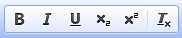
The tool bar options above will enable you to highlight or format sections of your text in different ways. From left to right the icons are: Bold, Italic, Underline, Subscript and superscript. The final icon on the right is for removing formatting. Simply select the text to be formatted (or un-formatted) and click on the appropriate icon.
Cut and Paste

It is much safer to use "paste as text" when copying text from elsewhere. This is the 3rd icon from the left in this group of icons.
Paragraph Style

The vast majority of your text should be formatted as "Paragraph". The first button will allow you to highlight specific text as a heading. You should only have one "Heading 1", but you can have many "Heading 2s and 3s". The next 3 icons will left justify, centre, or right justify text. The final 2 icons will allow you to add numbering or bullet points. If you wish to align a list of words see the separate page for "Aligning Text".
Inserting Images, YouTube Videos and Tables
or on our legacy platform:

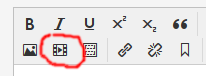
Picture and Media insertions (such as YouTube videos or Google Maps) can be inserted using these buttons.
For more information on inserting images see this page.
For instructions on inserting YouTube videos and other embedded media please see this page.
Tables can be added, and can also be used to help align text. For more details see this page.
Hyperlinks
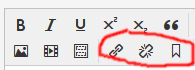
These buttons can be used to create hyperlinks and anchors within your pages.
or on our legacy platform:

To create a link, highlight the text you wish to link and click the "Link" icon (left icon in this group). To link to a web page select the Link Type of "URL" and enter the address of the website (without the http:// part) in the box provided. To enter an email link, select the Link Type of "Email" and enter the email address in the URL box. For instructions on uploading and linking to non image files please see this page.
An anchor can be created by selecting text and using the flag icon to "label" it. With the # tag syntax you can then link to specific parts of a page. For example the above heading of "Hyperlinks" has an anchor of "usinglinks" so this location on the page can be referred to as http://cmshelp.pcaccess.co.uk/editingtext#usinglinks from links on other pages.
Horizontal Line
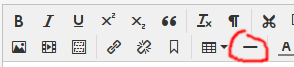
The Horizontal Line button will insert a line to divide areas of text
or on our legacy platform:

For example:
HTML Source Mode (Advanced Users Only)
The "Source" button (far right of the tool bar at the top) provides access to the raw HTML code for more advanced updating of pages such as overriding colours and font sizes of the websites design. Generally we do not recommend this as it can lead to an inconsistent design across your site. However, some users may find this facility useful.

A knowledge of HTML and CSS will be needed. Please use this feature with care.